Setting up multiple external monitors can transform your laptop from a portable device into a high-productivity workstation. However, the “how-to” depends entirely on your laptop’s ports and the cables you have on hand.
1. Check Your Ports
Before plugging anything in, identify what your laptop and monitors support. Common ports include:
- HDMI: The standard for most monitors and TVs.
- DisplayPort (DP): Often found on high-end monitors; supports higher refresh rates.
- USB-C (Thunderbolt/Alt-Mode): Many modern laptops use USB-C to output video.
2. Choosing the Right Connection Strategy
Depending on your setup, you can mix and match the hardware you have:
Scenario A: Your laptop has one HDMI port and one USB-C port
This is the most common way to get two external screens running.
- Monitor 1: Use a standard HDMI Cable directly from the laptop to the monitor.
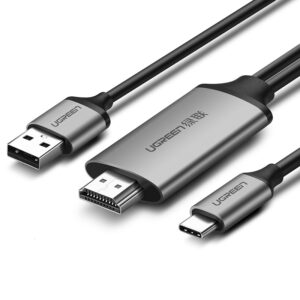
- Monitor 2: Use a Type-C to HDMI Adapter paired with another HDMI cable, or a direct Type-C to HDMI Cable.
Scenario B: You want the best performance (High Refresh Rate/4K)
DisplayPort (DP) generally handles higher bandwidth than older HDMI versions.
- The Setup: Use a Type-C to DP Adapter and a DP Cable.
- Why? If you are a gamer or designer, DP often provides a more stable high-resolution experience.
Scenario C: Daisy-Chaining (The Pro Setup)
If your monitors support “MST” (Multi-Stream Transport), you can connect one monitor to your laptop and then connect the second monitor to the first one.
- The Setup: Use a Type-C to DP Adapter to connect the laptop to the first monitor, then a DP Cable to link the two monitors together.
3. Quick Reference: Which Cable Do I Need?
| If you have… | And your monitor has… | Use this: |
|---|---|---|
| USB-C Port | HDMI Port | Type-C to HDMI Adapter + HDMI Cable OR Type-C to HDMI Cable |
| USB-C Port | DisplayPort | Type-C to DP Adapter + DP Cable |
| HDMI Port | HDMI Port | HDMI Cable |
4. Configuring Your Display (Windows & Mac)
Once everything is plugged in, your laptop might just mirror the screens. Here is how to fix that:
- Windows: Right-click the desktop > Display Settings > Select Extend these displays. You can drag and drop the monitor icons to match their physical positions on your desk.
- macOS: Go to System Settings > Displays > Arrange.
Note: Most base-model MacBooks require a docking station or specific “DisplayLink” adapters to support more than one external monitor.
Staff picks
Recommended products
Biaze USB-C to HDMI Adapter 4K@60Hz Aluminum
Original price was: $13.25.$11.26Current price is: $11.26.Samzhe HDMI 2.0 Cable 4K Ultra HD Gold-Plated
Price range: $6.39 through $8.11Samzhe HDMI 2.1 Cable 8K@60Hz 2m Certified
Original price was: $24.35.$20.70Current price is: $20.70.Samzhe HDMI 2.1 Cable 8K@60Hz 48Gbps
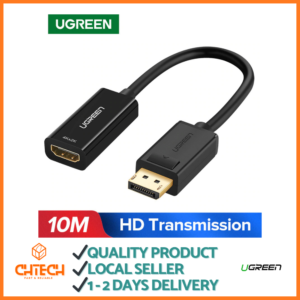
Price range: $20.70 through $23.56Ugreen DisplayPort to HDMI Adapter 4K
Original price was: $17.95.$15.26Current price is: $15.26.Ugreen USB-C to HDMI/DP Adapter 4K@60Hz
Price range: $14.41 through $17.84Ugreen USB-C to HDMI Cable 4K@60Hz 1.5m
Original price was: $40.80.$34.68Current price is: $34.68.Ugreen HDMI 2.0 Cable 4K@60Hz
Price range: $7.55 through $14.69Samzhe DisplayPort 1.2 Cable 4K 1m-3m
Price range: $10.11 through $14.98